Account access
Use this guide to create a RU4M account, confirm your email address, sign in and recover a forgotten password.
Before you start
You do not need an account, a company, an event or a paid package to follow this guide. You can open every screen in it without signing in.
Backoffice takes its language and colour theme from your browser. The screenshots follow the light or dark theme you choose for this guide.
Registration and email confirmation
Create your account
-
Open
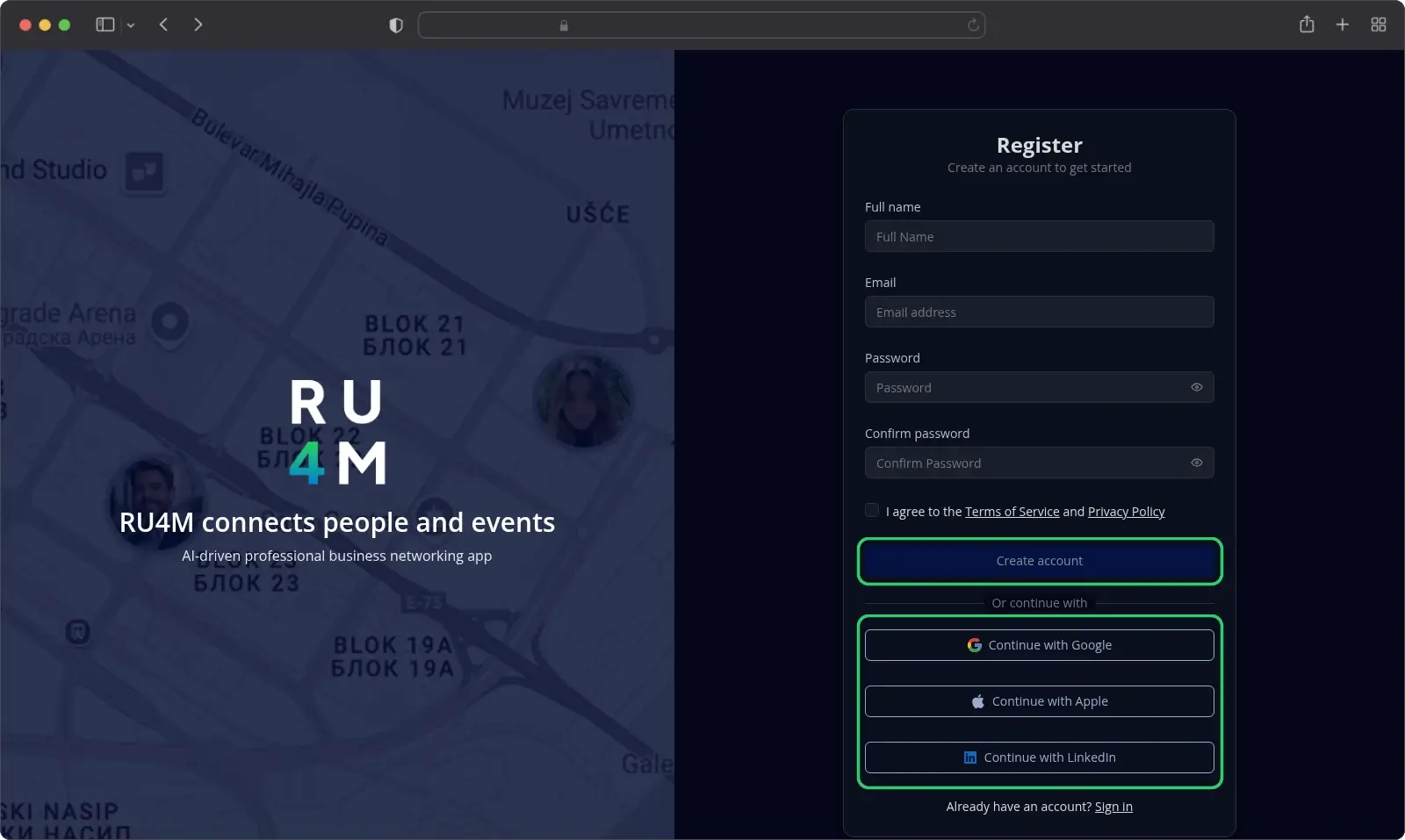
/auth/registerin your browser.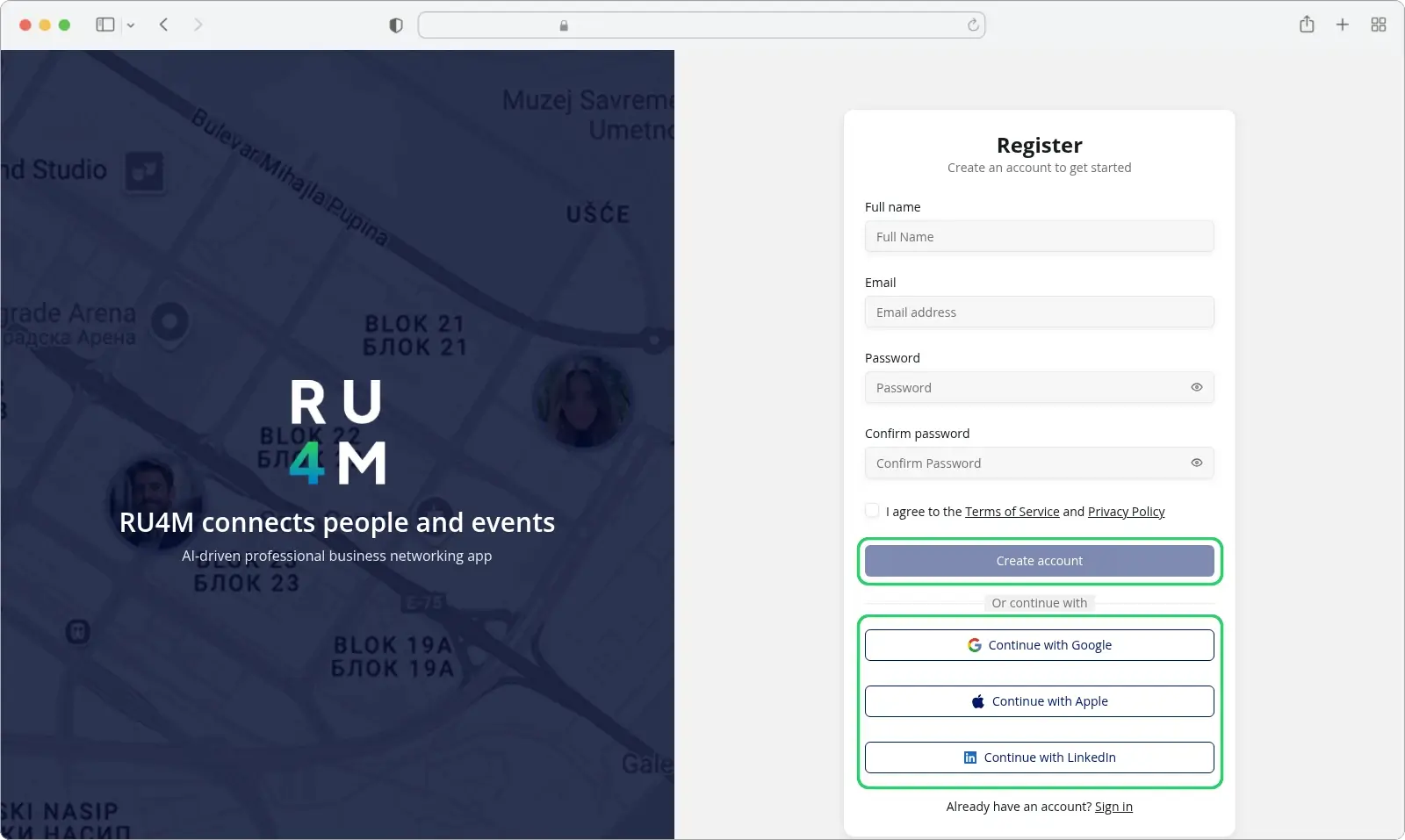
-
Enter your Full name. Use at least two words, with letters, numbers and spaces.
- Enter your Email. Use the address you want to use for RU4M.
- Enter a Password of at least 8 characters.
- Enter the same password again under Confirm password.
- Tick the box to accept the Terms of Service and Privacy Policy.
- Select Create account.
The Create account button stays greyed out until every field is filled in correctly.
Password rules differ between screens
The registration form asks only for 8 characters. The full password policy applies later, when you set a new password through password recovery. See Set a new password.
To register with Google, Apple or LinkedIn instead, select its button under Or continue with.
What happens next
Backoffice signs you in straight away and opens the Check your email screen.
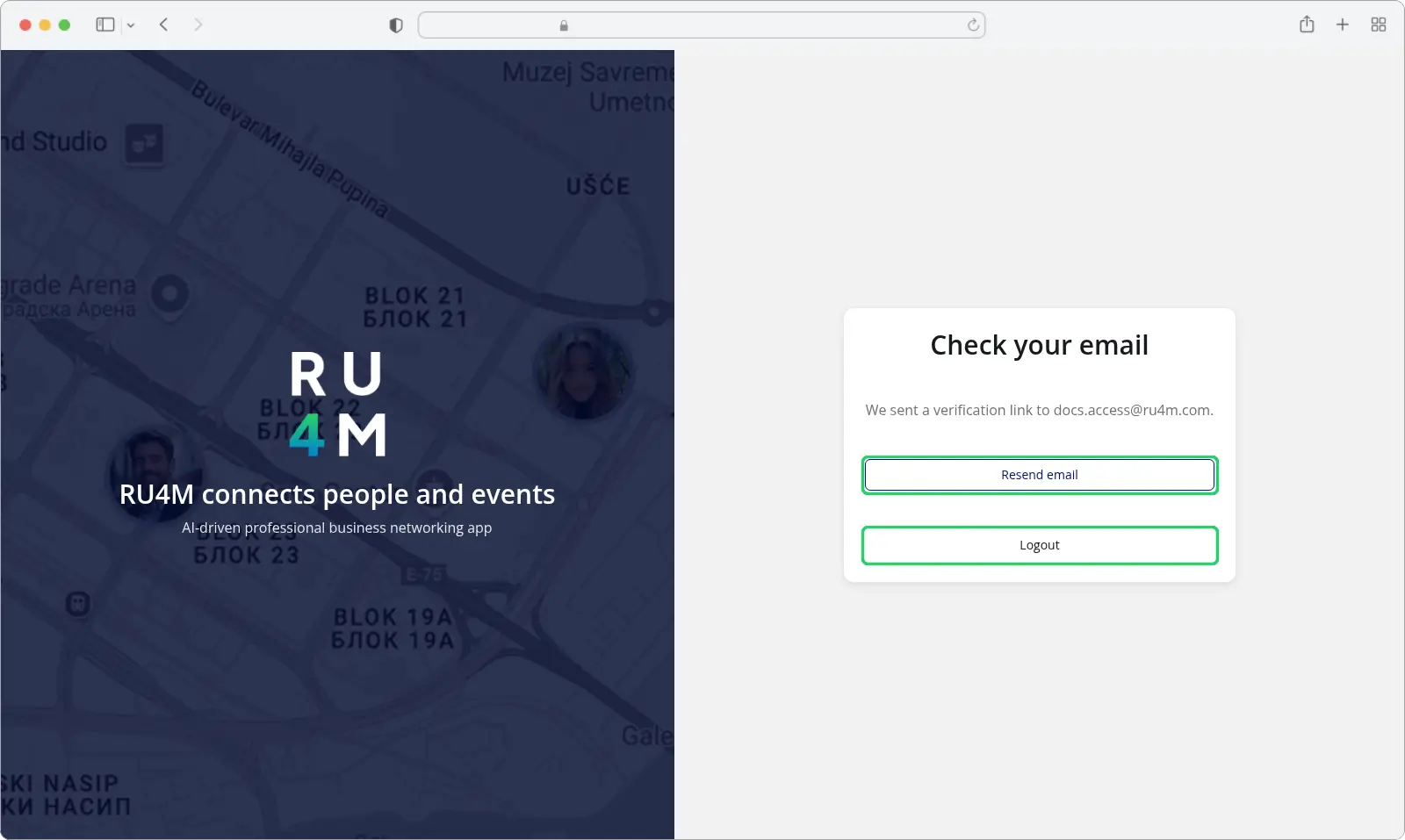
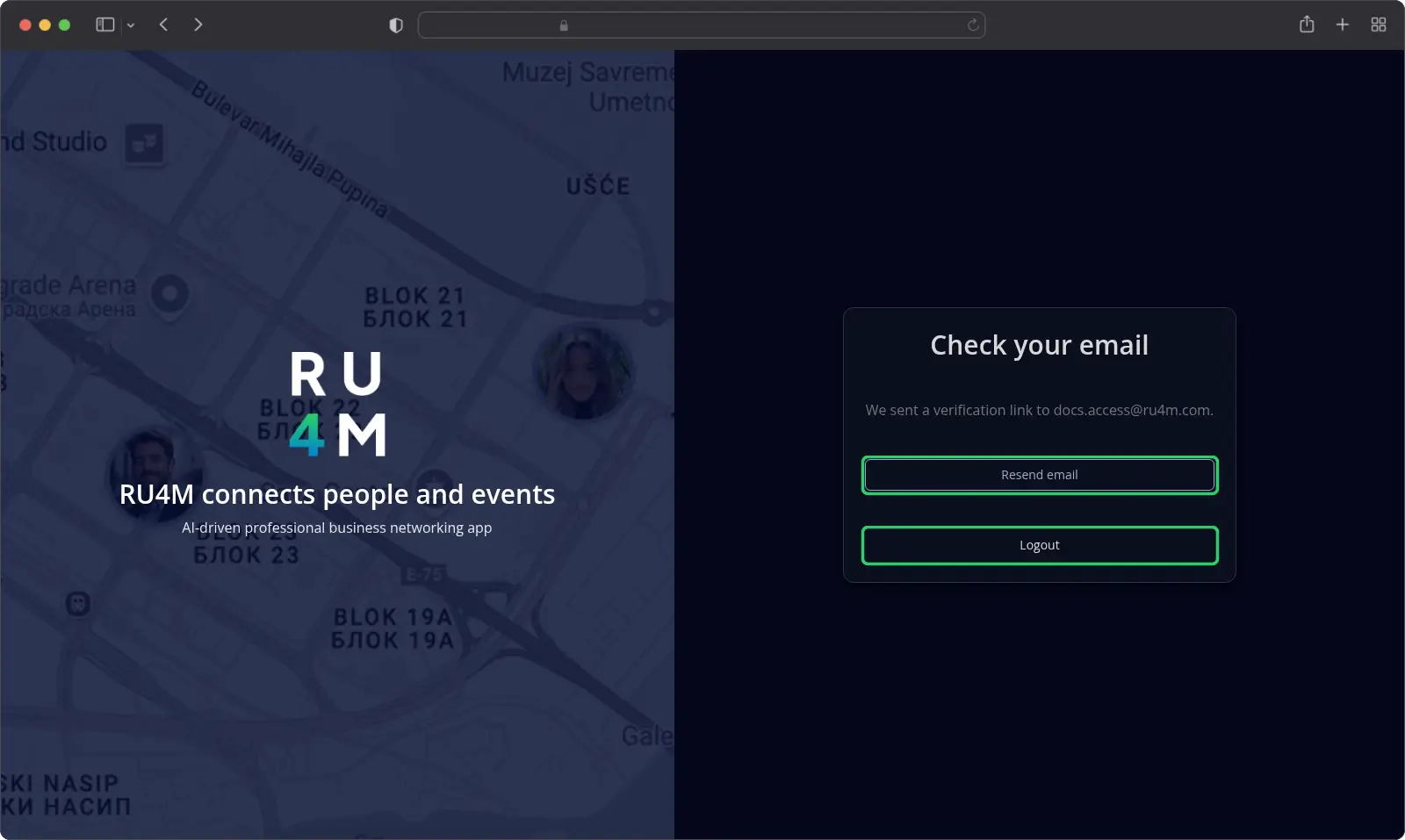
Backoffice keeps you on this screen until you confirm your address. Until then, every other page sends you back here, including the page for creating a new event.
If you entered the wrong address, select Logout and register again.
If the message has not arrived, select Resend email. The button then counts down for 60 seconds before you can use it again.
If the address is already registered
Backoffice tells you when an address already has an account.
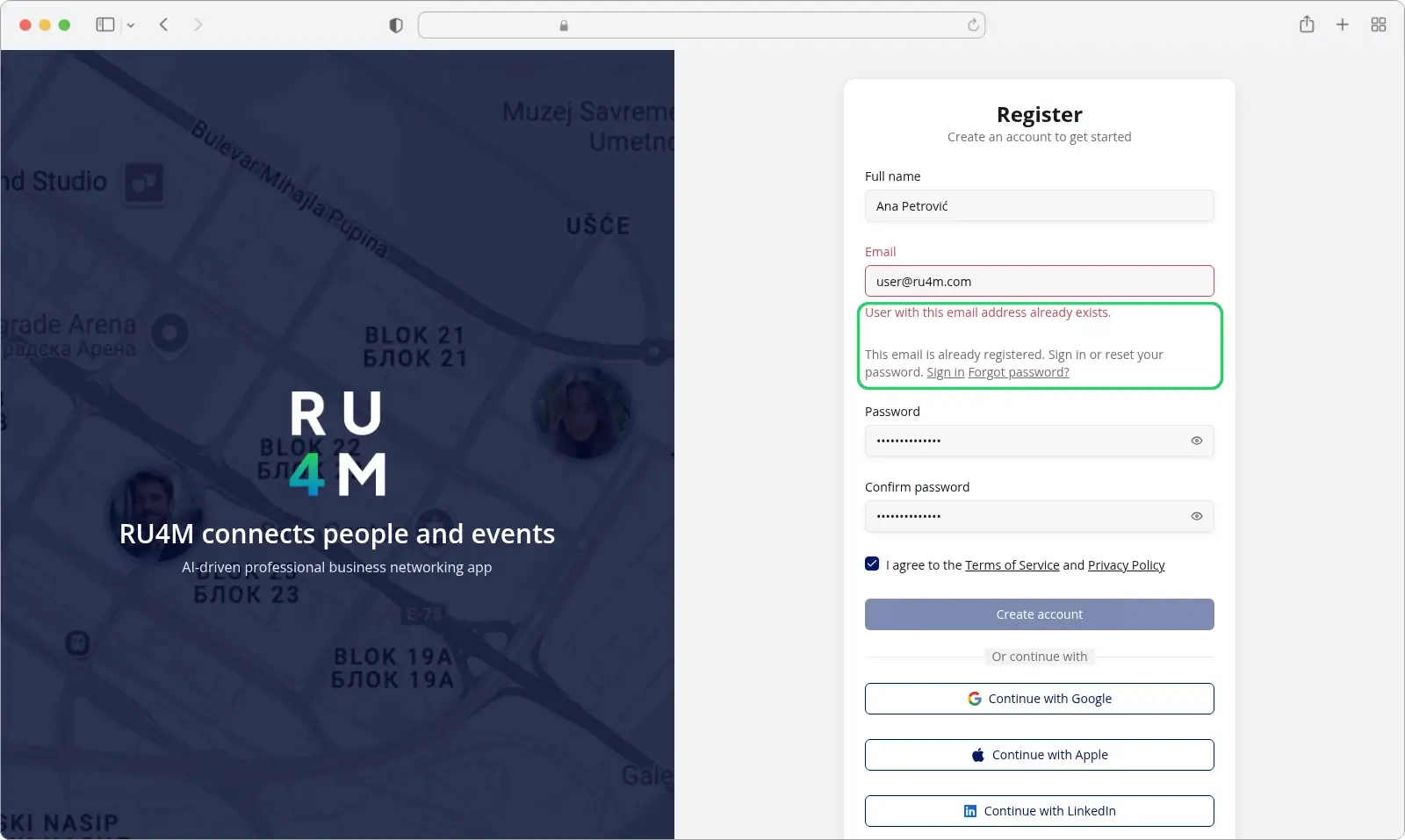
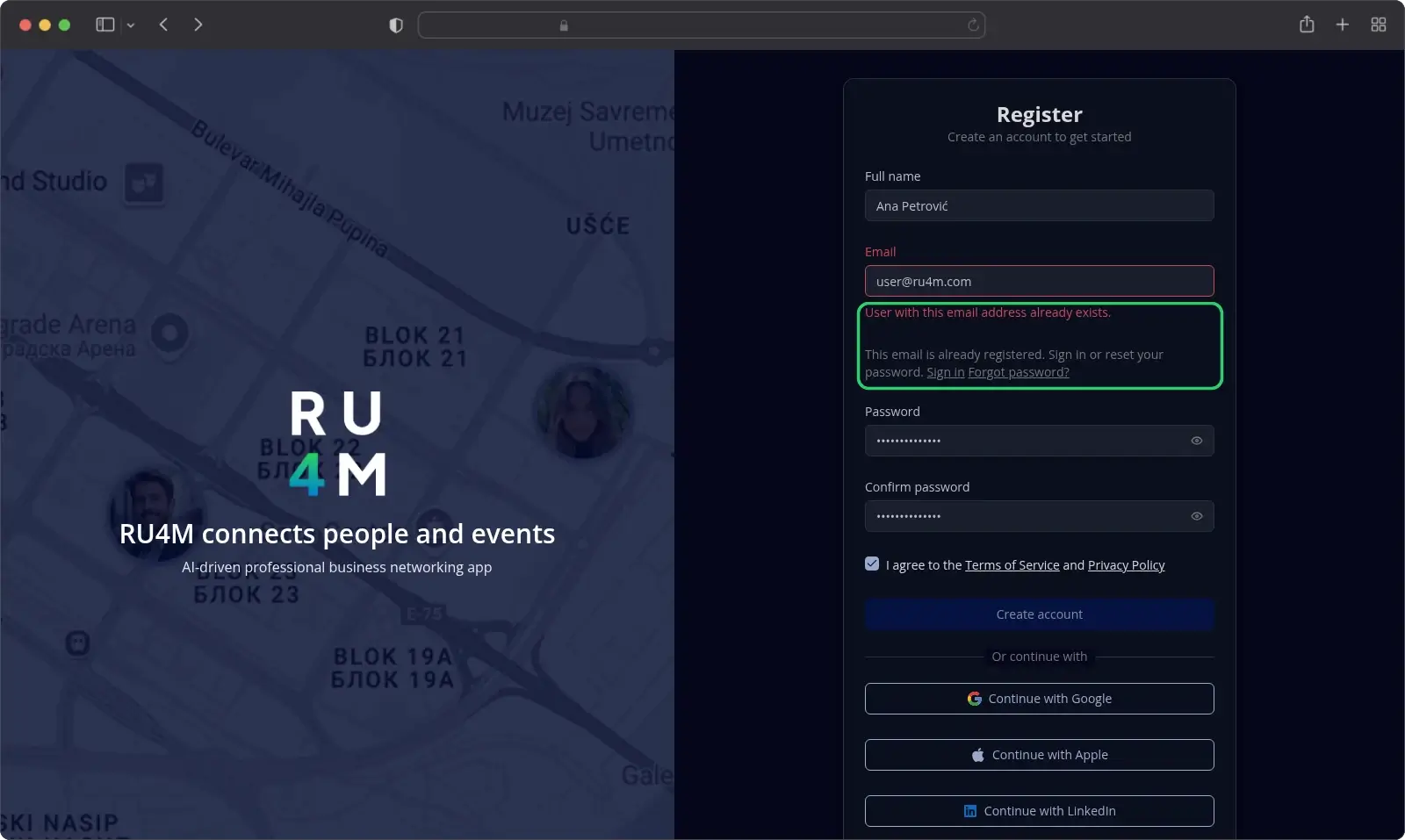
Two messages appear under the Email field. The second one offers two links:
- Sign in — takes you to the sign-in screen.
- Forgot password? — takes you to password recovery.
Confirm your email address
Backoffice sends a confirmation email right after you register.
- Open the email with the subject Verify your email address.
- Select the confirmation link.
The link opens the Verify email screen, which confirms your address. There is no separate confirmation page.
While you are still signed in, Backoffice takes you straight to the dashboard. If you open the link on another device, or you used Logout on the Check your email screen, Backoffice takes you to the sign-in screen instead. Sign in, and you land on the dashboard.
The confirmation link opens in your default language
The link carries no language, so it always opens Backoffice in your default language. You can switch language after you arrive.
Sign-in
Open /auth/login to sign in. Backoffice also sends you here when you open a page that needs an account. After you sign in, it returns you to that page.
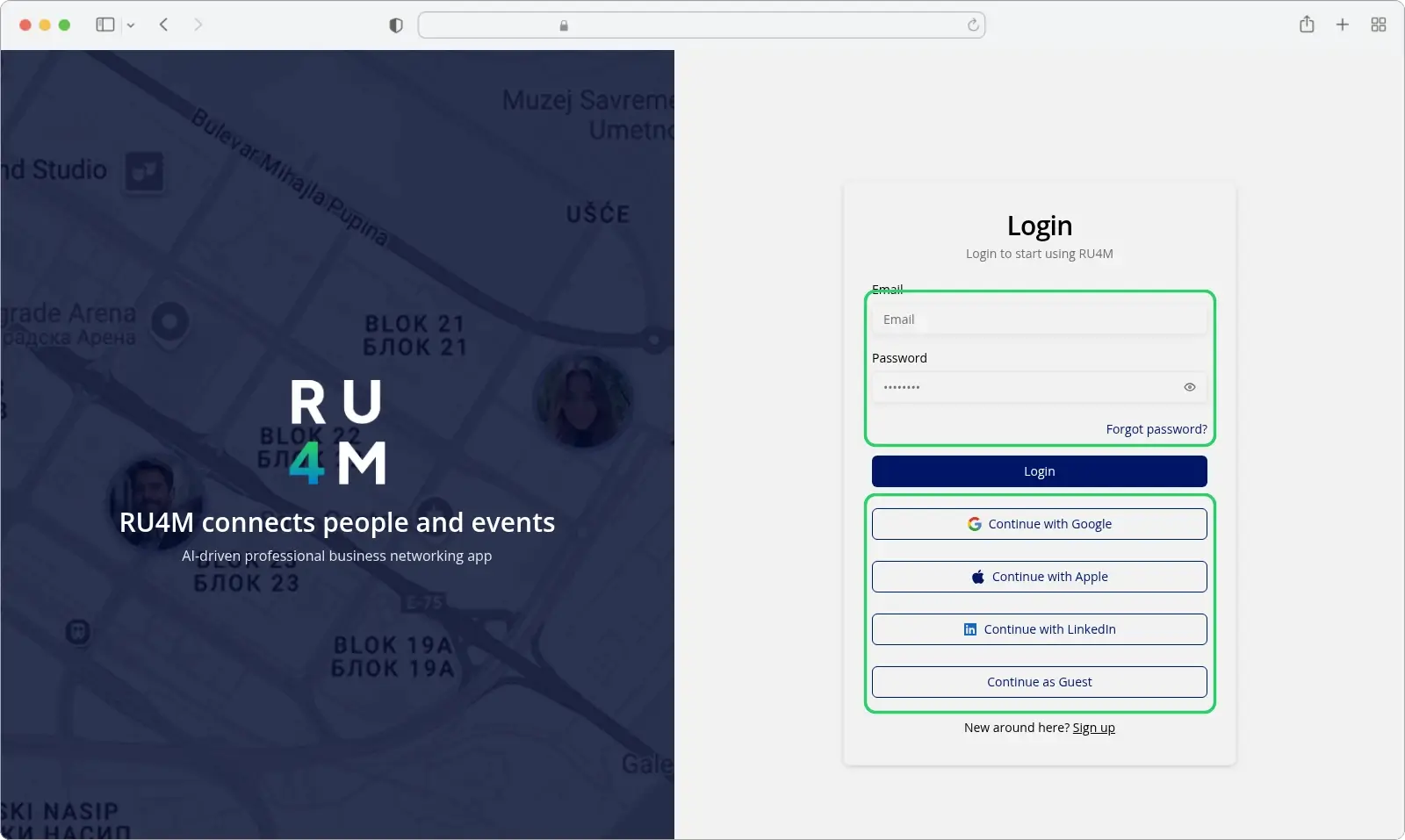
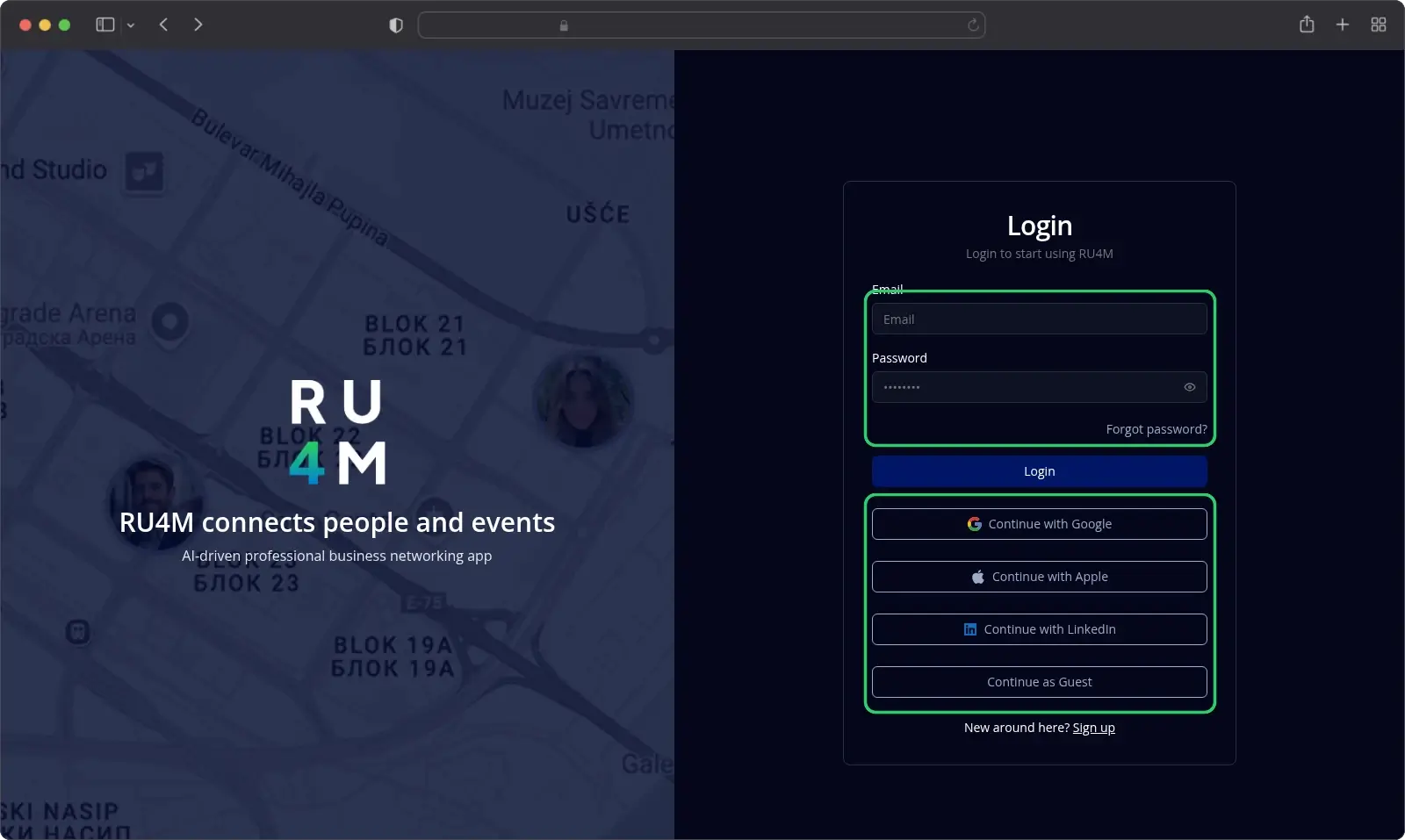
- Enter your Email.
- Enter your Password.
- Select Login.
Select the eye icon next to the password to see what you typed.
You can also sign in with Google, Apple or LinkedIn. Select Continue as Guest to browse public event pages without an account.
Sign out
Open the account menu in the top bar and select Logout.
Password recovery
Request a reset code
-
Open
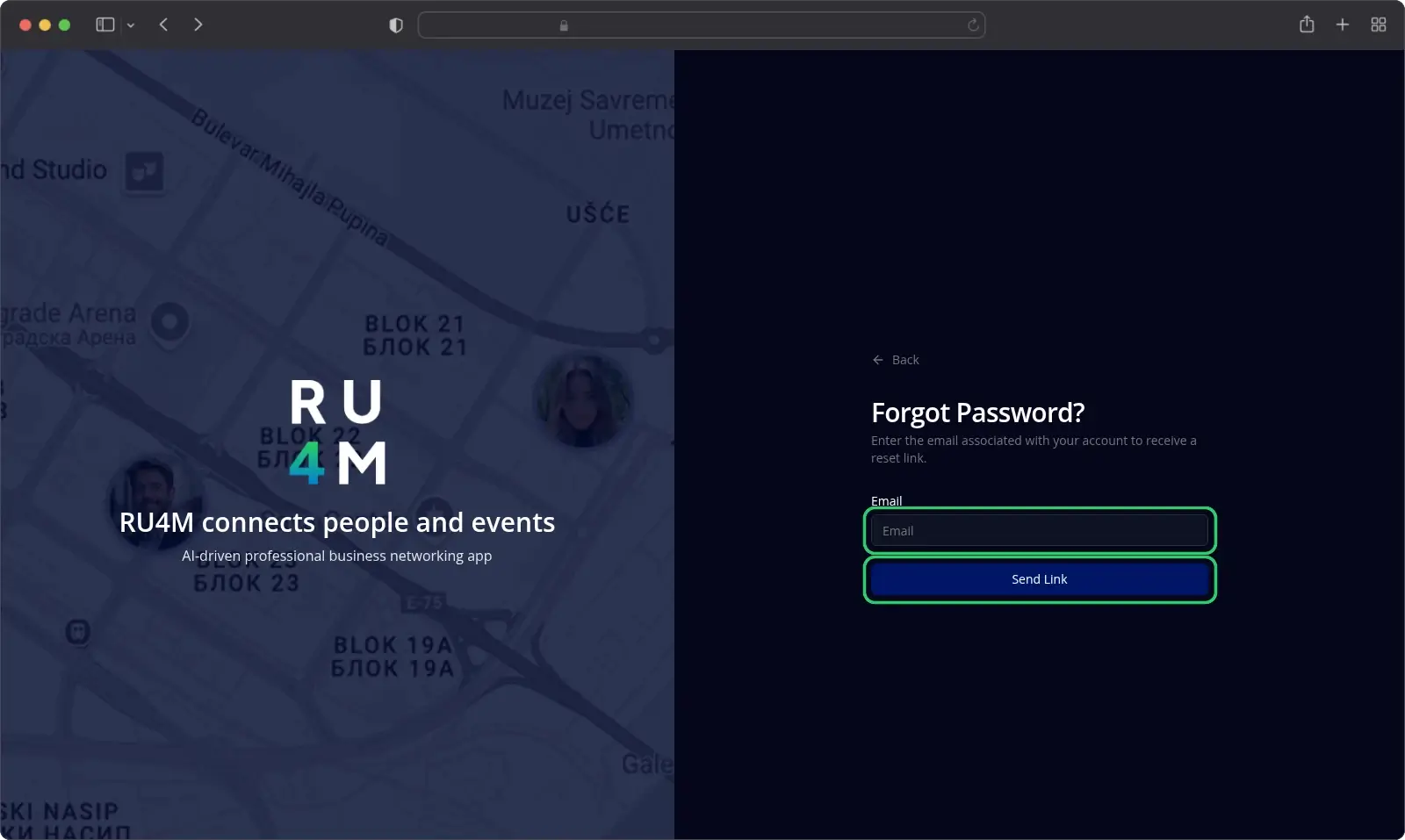
/auth/forgot-password.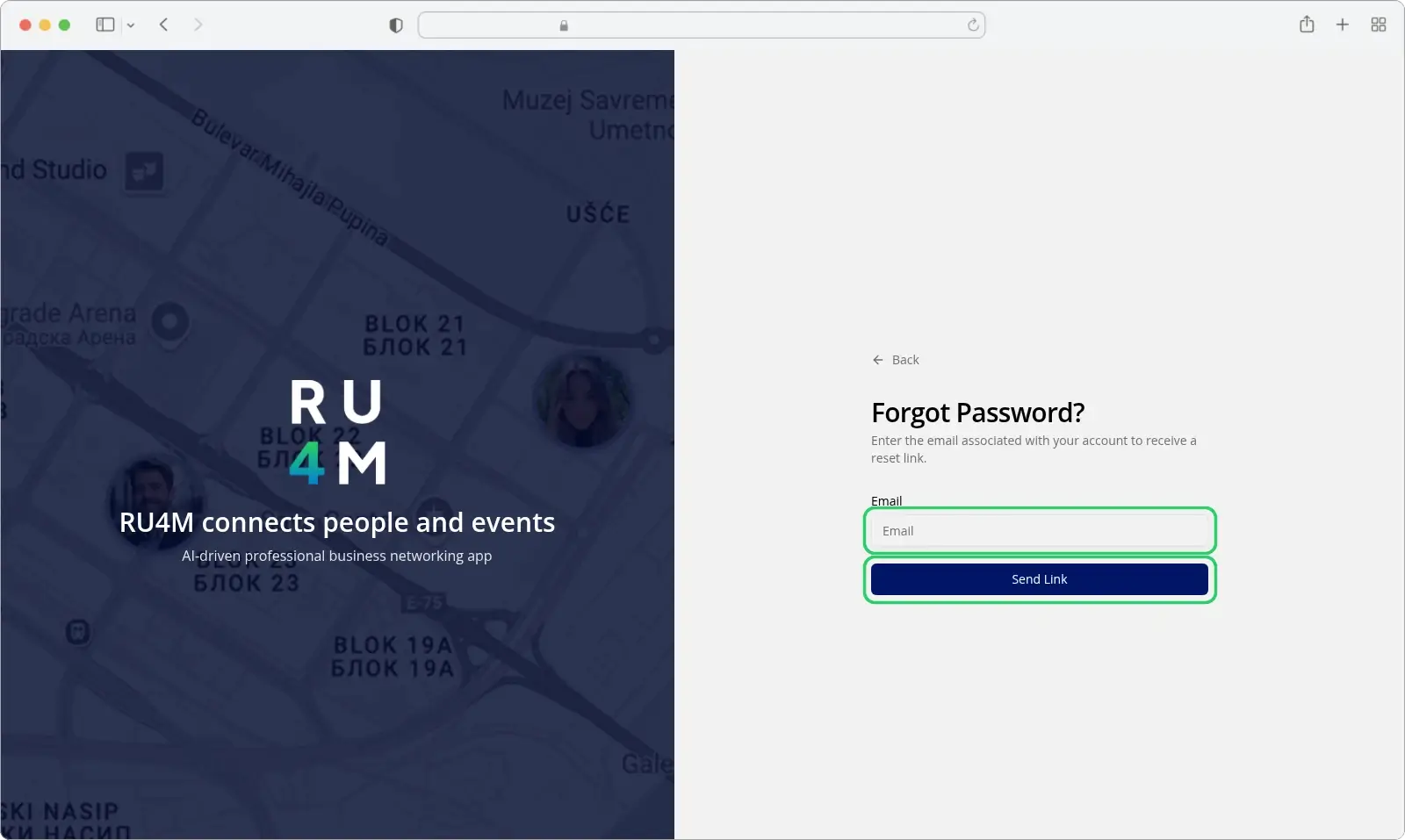
-
Enter the email address of your account.
- Select Send Link.
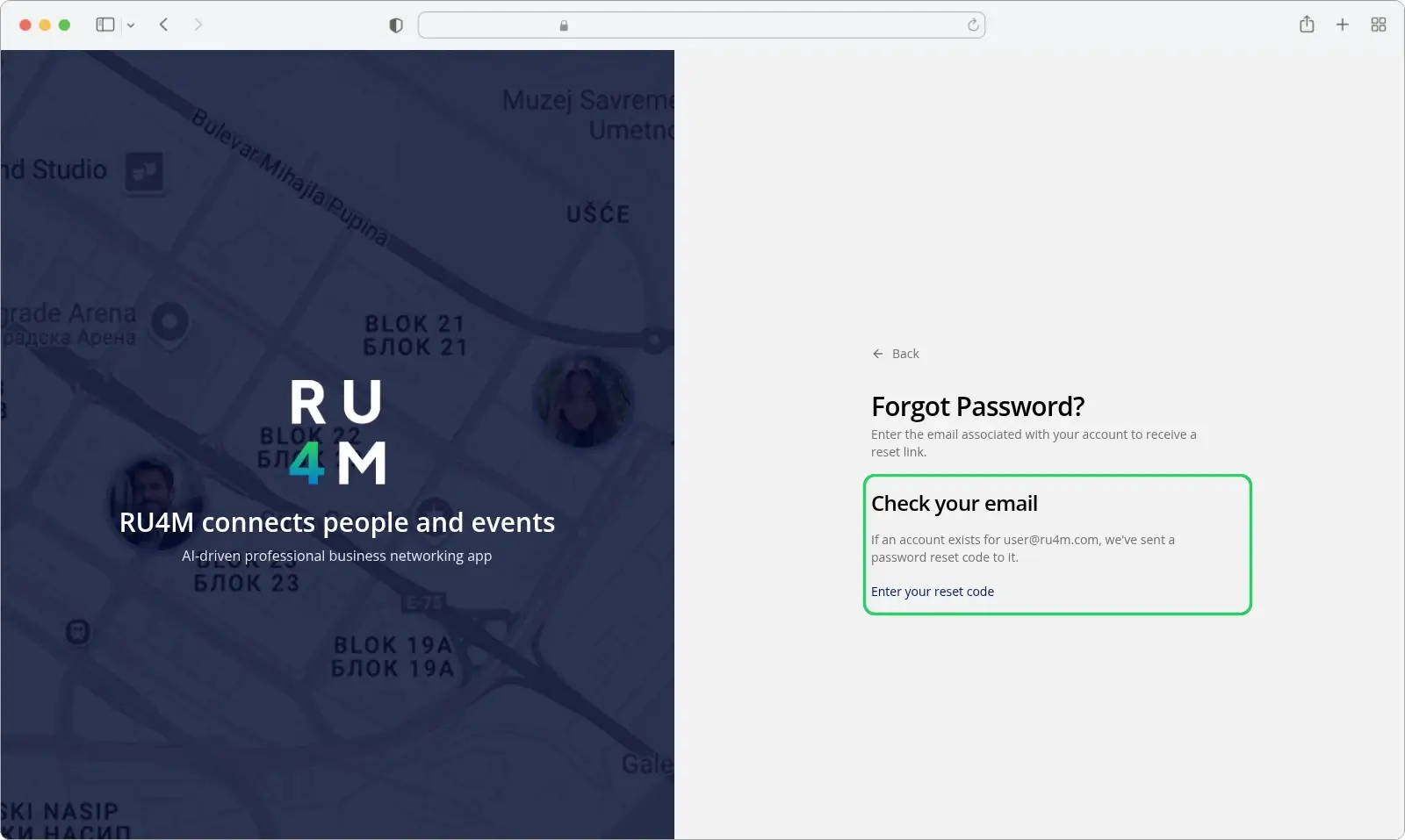
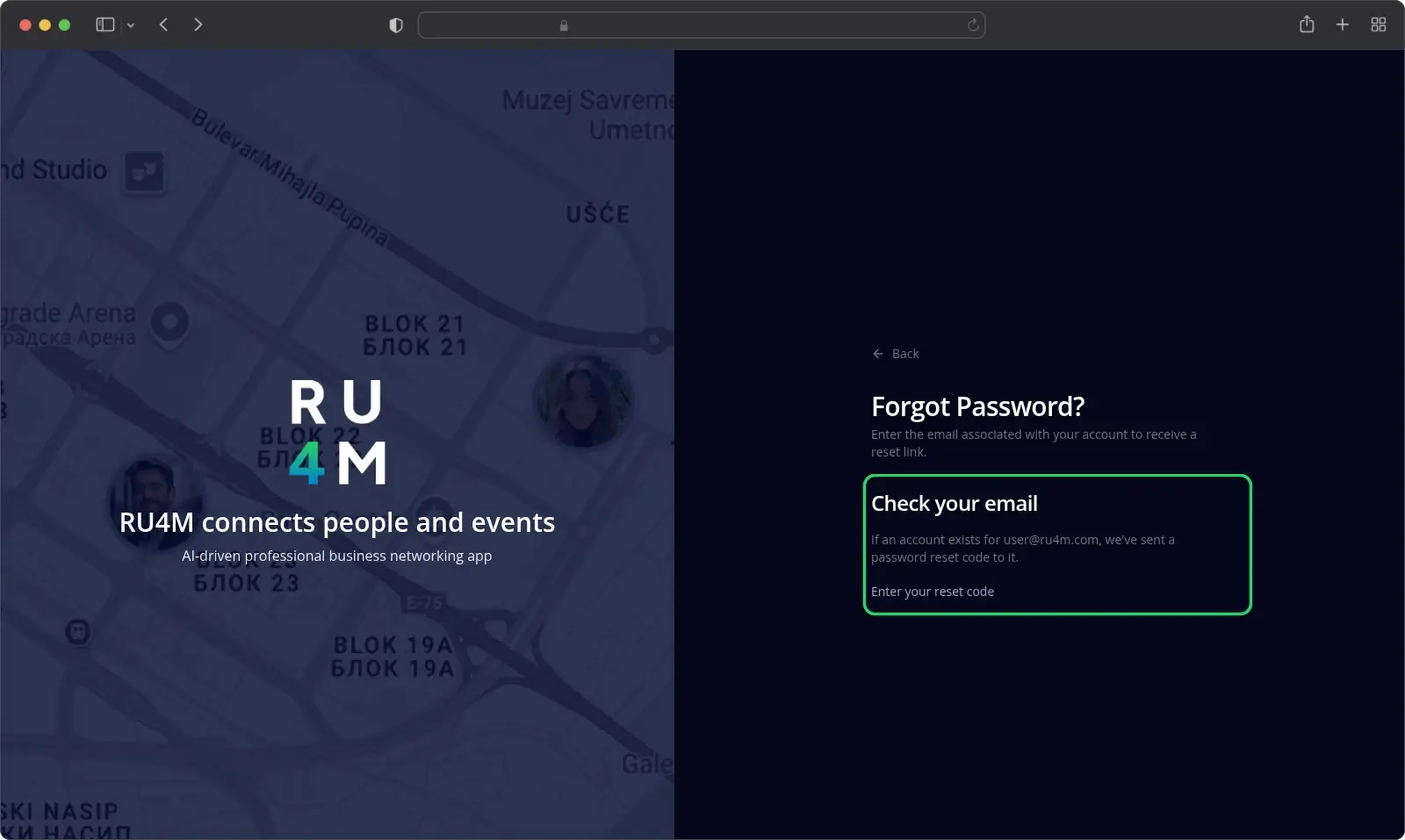
Backoffice shows a Check your email panel.
The button says Send Link, but the email carries a code
The button and the description on this screen say "link". However, the email contains a 6-character code. You type it on the next screen.
Select Enter your reset code to continue.
Set a new password
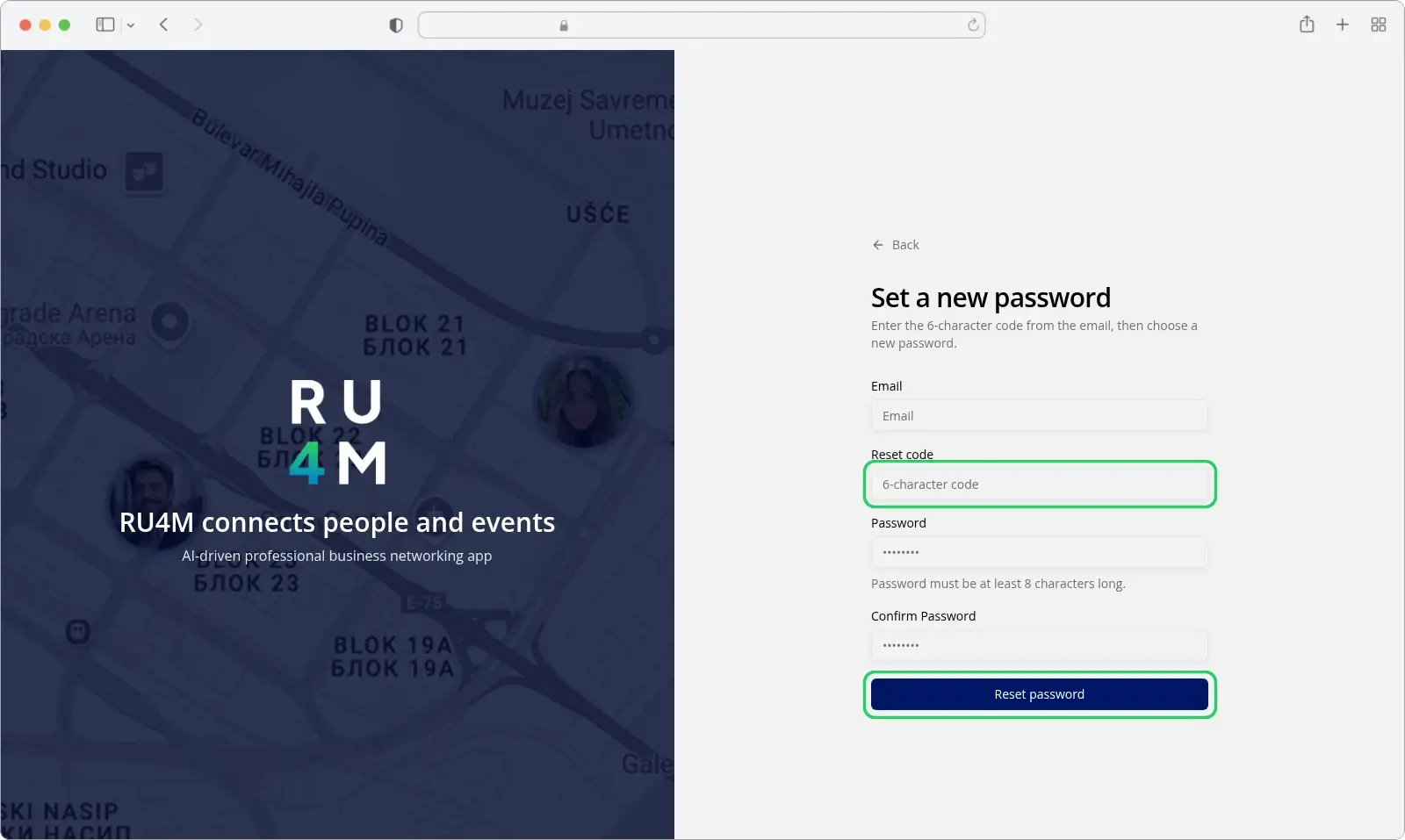
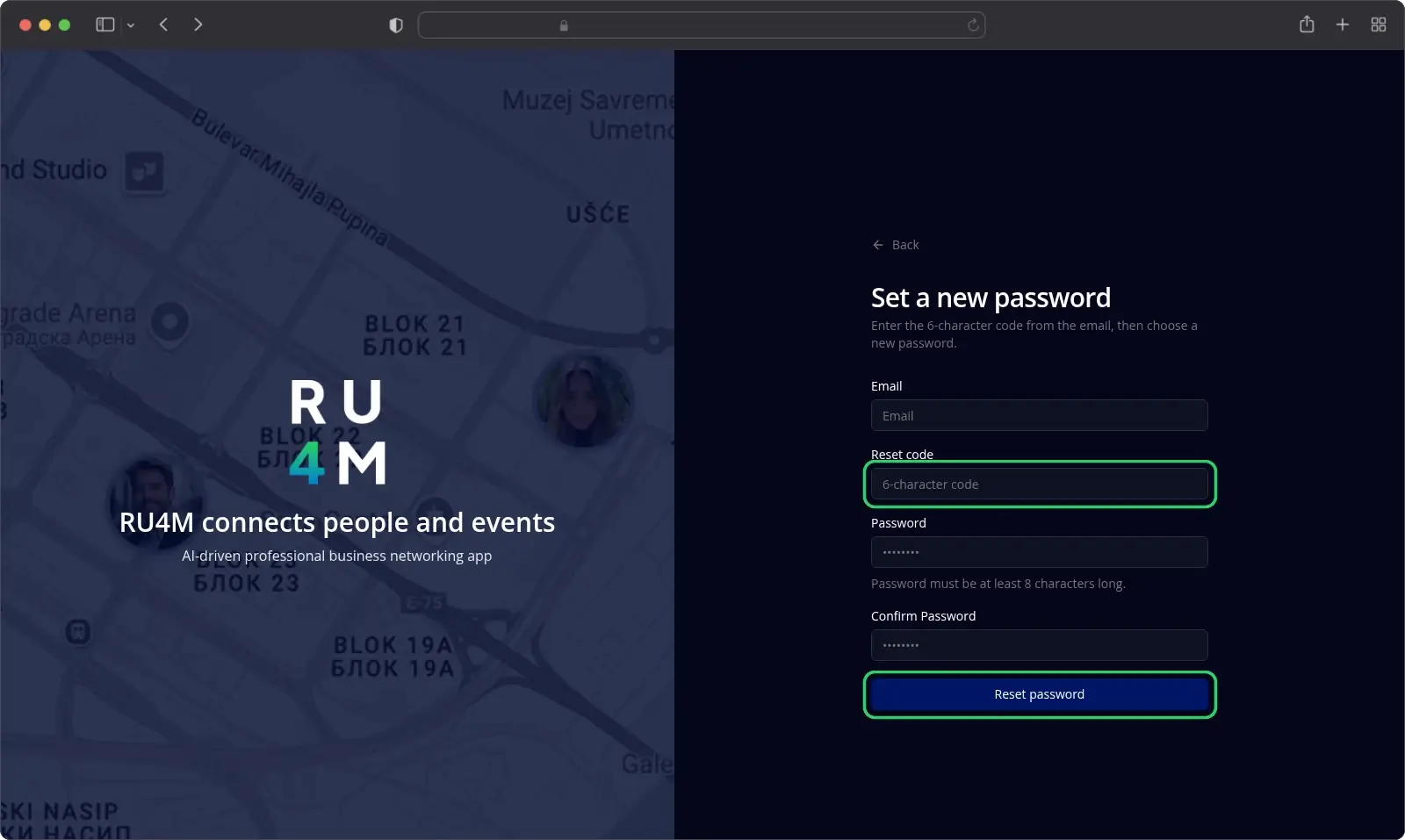
- Enter your Email again. The screen does not remember it for you.
- Enter the Reset code from your email.
- Enter your new Password.
- Enter the new password once more under Confirm Password.
- Select Reset password.
The code is 6 characters from 0-9 and A-F. You can type it in lower case. Each code works once and expires after one hour.
When you request a new code, the previous one stops working.
Your new password must contain:
- at least 8 characters,
- one uppercase letter,
- one lowercase letter,
- one digit,
- one special character, such as
!or#, - no spaces.
What happens next
Backoffice confirms the change and returns you to the sign-in screen. Your old password stops working. Backoffice also confirms your email address.
Troubleshooting
The confirmation email never arrived. Look in your spam folder for a message titled Verify your email address. Select Resend email on the Check your email screen and try again. You cannot open Backoffice until the address is confirmed.
The screen says Send Link, but the email contains a code. This is expected. Type the 6-character code on the Set a new password screen.
The reset code is rejected. Request a new code and use the newest one. Codes expire after one hour, and each code works only once. A wrong code, an expired code and an unknown address all produce the same message, so request a new code first.
Your new password is rejected. Check that it has at least 8 characters, an uppercase letter, a lowercase letter, a digit and a special character. It must contain no spaces. An underscore does not count as a special character.
The registration form says the address already exists. That address already has an account. Select Sign in or Forgot password? in the message under the email field.
An error appears in English on the Serbian form. Some messages come from the server and are only available in English. The rest of the screen stays in Serbian.
Related tasks
- Finding your way and your events — move around Backoffice after you sign in.
- Language, currency and theme — change the language and the theme of the interface.
- Your first event — create your first event.
- Back to Get started